Smart Login
Smart Login feature allows your customers to easily log in to a device that may not be accessible with standard web or mobile devices.
The Smart Login feature does not require a password to log in and is designed to help you delegate the authentication process to a different device. It is commonly used in Smart Phone Apps, Smart TV Apps, Gaming Consoles (Xbox, PS, etc).
The following displays the functional flow of Smart Login:
The following explains the working of above sequence diagram:
- Your customer enters the registered email on the Smart Device and requests login. The email verification/login request is sent to the LoginRadius API (For the IDX and JS implementation, you don't need to call API explicitly).
- Your app on Smart Device begins pinging for valid verification until the response (token or invalid) is received.
- LoginRadius API creates a verification token and sends an email with the token in the login link to your customer’s email. Your customers access their email account on traditional devices like computer, smartphone and more.
- Your customers click the Login Link received on their email.
- Your customer lands on the IDX (hosted) page, and it automatically calls the LoginRadius API to pass the token.
- LoginRadius API validates the received token and upon validation returns the Access Token and Profile details to your app on the customer’s smart device (TV, IoT and more).
- On the other hand, your app on the customer’s smart device is continuously pinging, hence your app receives the status change from the LoginRadius API. Now, the customer is authenticated on your app.
Smart Login Guide
This guide will take you through the process to set up and implement Smart Login. It covers everything you need to know on how to configure Smart Login in the LoginRadius Identity Platform and deploy it onto your web application.
Pre-requisites:
- Smart Login should be enabled on your account.
- Basic knowledge of HTML/JavaScript.
Enable Smart Login
Login to your Admin Console account and navigate to Platform Configuration > Advance Login Methods > Smart Login Settings.
The following screen will appear:
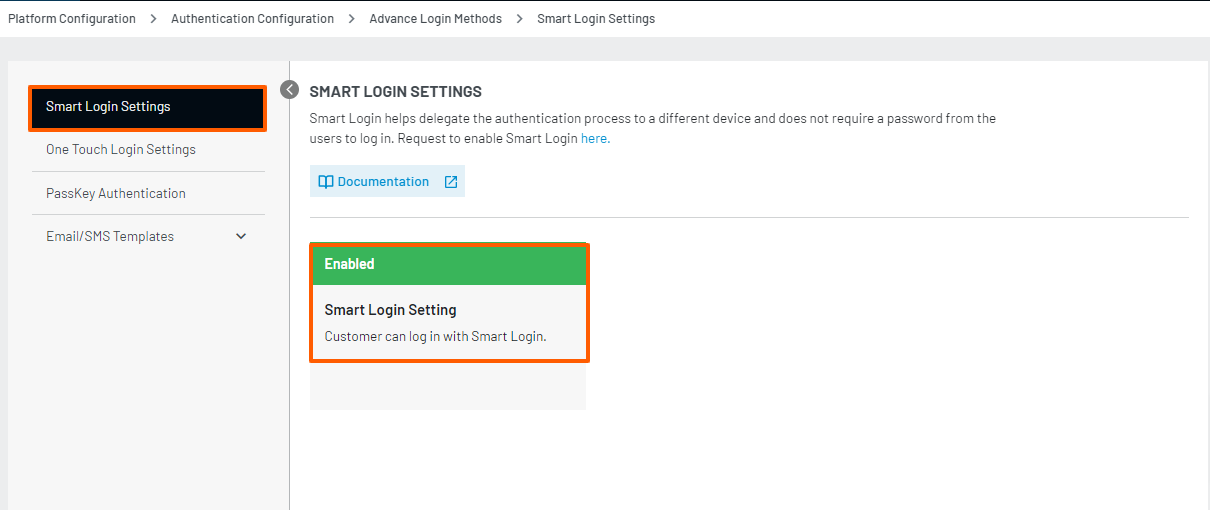
The above screen displays that the Smart Login is enabled for your account since the Smart Login Settings box is in green with the **enabled **text. If not enabled for your account, raise a request to the LoginRadius Support Team
Part 1 - Configuration
This section covers the required configurations that you need to perform in the LoginRadius Admin Console to implement the Smart Login functionality.
Step 1: To configure the Smart Login Email Settings, navigate to Platform Configuration > Advanced Login Methods > Email/SMS Templates > Smart Login
The following screen will appear:
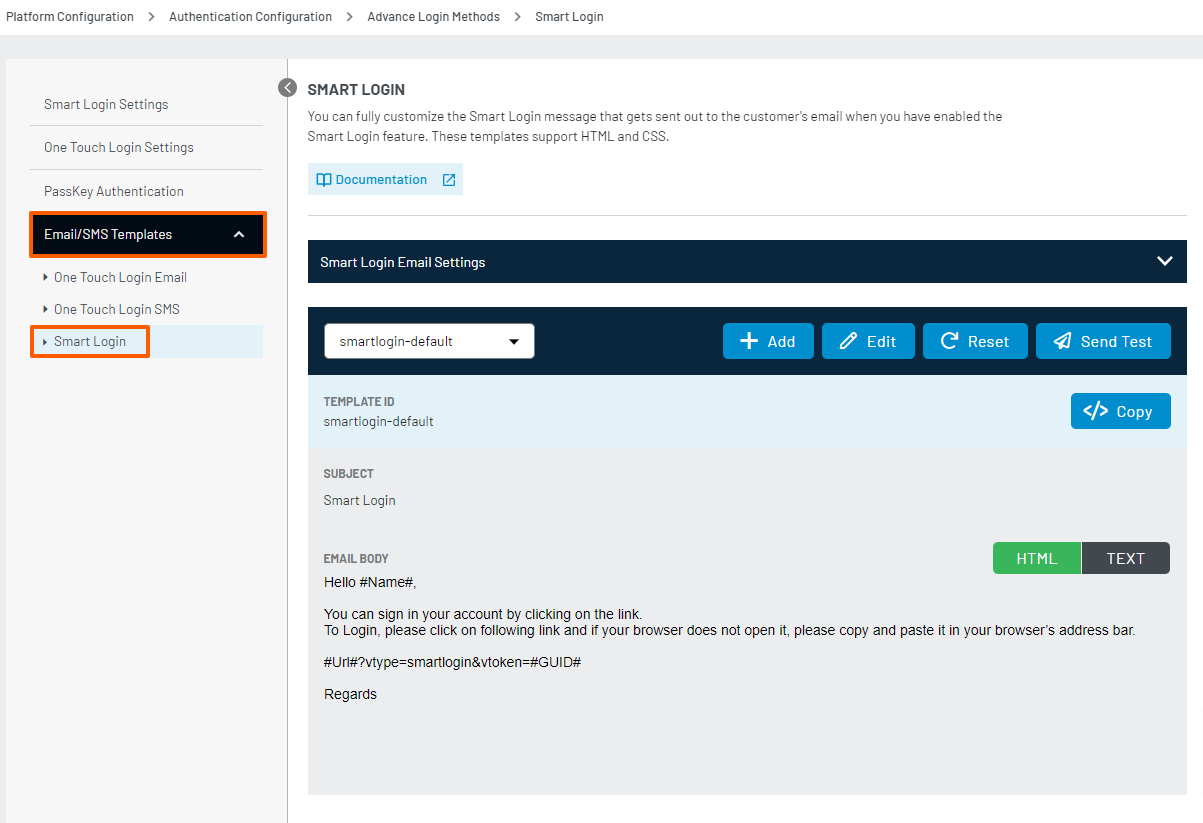
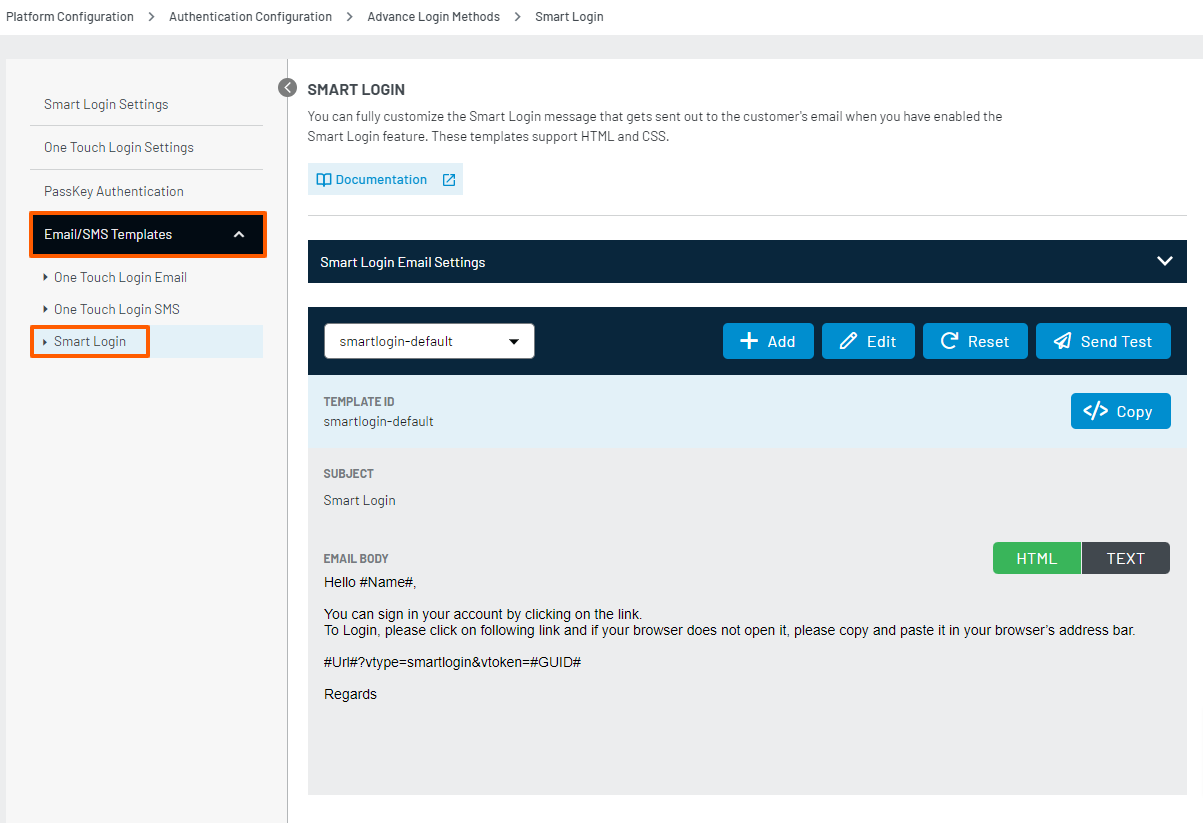
Step 2: Click on Smart Login with Email Settings. Enter Request Limit, Request disabled Period and Email Token Validity Limit as highlighted in the following screen and click on the Save button.
Step 3: Select the Email template that you would like to manage as highlighted in the following screen:
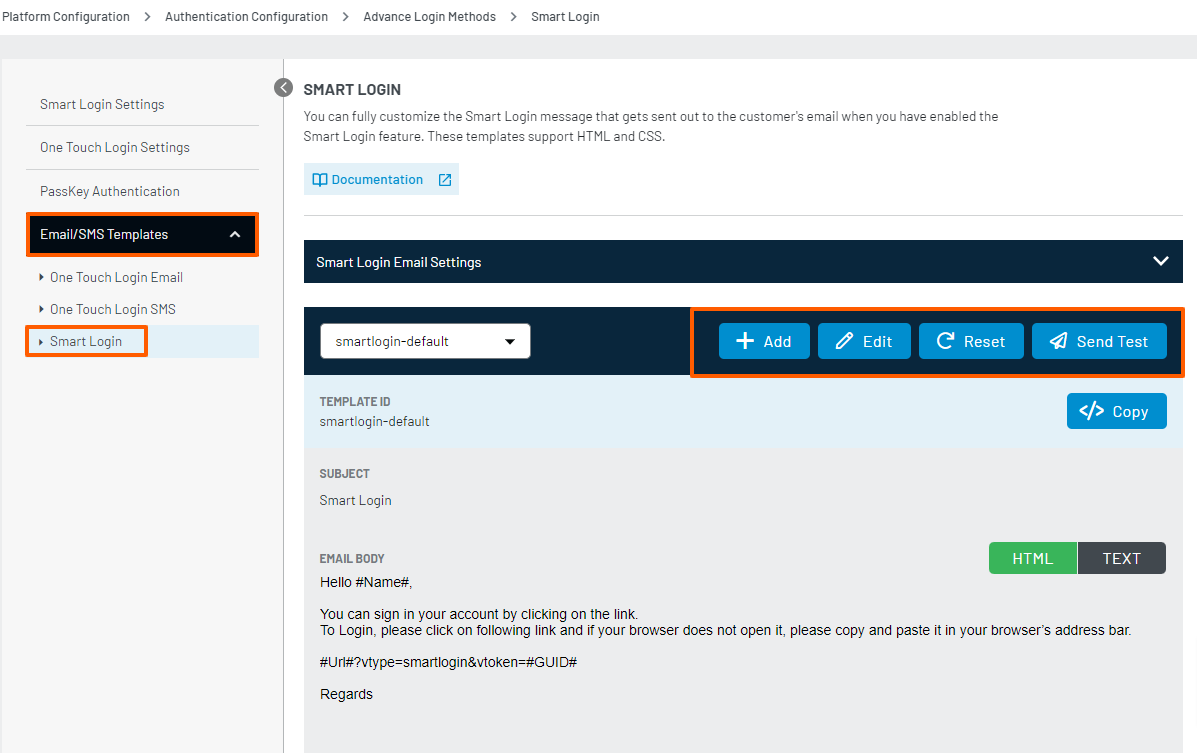
You can perform actions such as Add Template, Edit Template, Send Test Email and Delete Template.
Note: You can only delete the new template(s) that you have created i.e. you will not be able to delete the default template.
Part 2 -Deployment
The LoginRadius Identity Platform supports a variety of implementation methodologies that allow you to customize the customer flows.
This guide focuses on the following deployment methods:
However, you can similarly accomplish the deployment with any of the implementation methodologies. Full details on these methodologies can be found here:
Note:
IDX Deployment
Make sure you have implemented the following redirects and callbacks from your web application
Step 1: Locate the Auth Page URL as explained below: Navigate to** Deployment > Identity Experience Framework(Hosted)** and the following screen appears:

The Auth Page URL displays your unique hosted page domain in the following format:
<https://<sitename>.hub.loginradius.com/auth.aspx>
In the above URL, sitename is the name of your LoginRadius Site.
Step 2: Embed Authentication Pages in your Website as explained below:
Add a link on your webpage for redirecting customers to the Identity Experience Framework(Hosted) Page.
<a href="https://<LoginRadius Site Name>.hub.loginradius.com/auth.aspx?action=<Desired Action>&return_url=<Return URL>">Register</a>
In the above URL replace the following:
a. < LoginRadius Site Name> : Your unique LoginRadius sitename as found in step 1.
b. < Desired Action> : following are the action list you can use
- Login
- Register
- Forgot Password
- logout
Example:
Login Page
<a href="https://<LoginRadius Site Name>.hub.loginradius.com/auth.aspx?action=login&return_url=<Return URL>">Login</a>
Registration Page
<a href="https://<LoginRadius Site Name>.hub.loginradius.com/auth.aspx?action=register&return_url=<Return URL>">Register</a>
c. < Return URL>: The URL you would like to redirect customers after completing the selected action
Try this link out on your page, You should be redirected over to the LoginRadius hosted page where you can register, login, and reset your password.
Note: Use the following URL link to display the profile page of logged in customer
<a href="https://<LoginRadius site name>.hub.loginradius.com/profile.aspx">View Profile</a>
Use the below JavaScript snippet to capture the access token on your page:
function getParameterByName(name) {
                name = name.replace(/[\[]/, '\\[').replace(/[\]]/, '\\]');
                var regex = new RegExp('[\\?&]' + name + '=([^&#]*)');
                var results = regex.exec(location.search);
                return results === null ? '' : decodeURIComponent(results[1].replace(/\+/g, ' '));
            }
var access_token = getParameterByName(“token”);
Note: We have additional language specific examples here if you want to capture this token in other programming languages.
Step 3: You can use the Access Token as explained below:
Call the LoginRadius API to retrieve the customer profile using the Access Token. Alternatively, you can leverage any of our SDKs to accomplish this.
The following is the script example to retrieve the customer profile:
<script>
var xhr = new XMLHttpRequest();
url = "https://api.loginradius.com/identity/v2/auth/account?apiKey=xxxxxxxx-xxxx-xxxx-xxxx-xxxxxxxxxxx&access_token="+access_token
xhr.open("GET", url);
xhr.setRequestHeader('X-Requested-With', 'XMLHttpRequest');
xhr.setRequestHeader('Content-Type', 'application/json');
xhr.send();
 xhr.onreadystatechange = function() {
    if (xhr.readyState === 4) {
      console.log(xhr.response);
    }
  }
</script>
On executing the above deployment steps, you will see obtained customer profile data in Console Log of your browser. You can then link the obtained data to your applications.
After the above configuration, Smart Login will reflect on your <https://<sitename>.hub.loginradius.com/auth.aspx> LoginRadius Site.
JavaScript Deployment
The following are the sequential steps to deploy the Smart Login feature using the LoginRadius JavaScript Libraries:
Step 1: Include the LoginRadius JavaScript Libraries as explained below: Add the following JavaScript to head tag just before closing the body tag of Index.html file: https://auth.lrcontent.com/v2/js/LoginRadiusV2.js
Note: It is recommended to utilize the script from our CDN domain (https://auth.lrcontent.com/v2/js/LoginRadiusV2.js) rather than making a local copy.
Step 2. Add the smartLogin parameters in User Registration JS:
var commonOptions = {};
commonOptions.apiKey = "<your api key>";
commonOptions.smartLoginPingCount = <any number>; //default is 100 times
commonOptions.smartLoginPingInterval = <any number>; //default is 5 second
commonOptions.smartLoginEmailTemplate = <Email template>
commonOptions.smartLoginRedirectUrl = <Redirect Url>
var LRObject= new LoginRadiusV2(commonOptions);
Step 3. The following can be used to handle the smartLogin event:
var options = {};
options.onSuccess = function(response) {
//On Success
console.log(response);
if (response.access_token) {
// Handle the access token to Login a user
}
};
options.onError = function(errors) {
//On Error
console.log(errors);
};
options.container = "smartLogin-container";

LRObject.util.ready(function() {
LRObject.init("smartLogin",options);
})
HTML element can be used as below
<div id="smartLogin-container"></div>
Note: After clicking on the login button, the client will continuously ping the server to confirm whether the customer has clicked on the link in the email.
Step 4. Change Button Name.
The above code will generate the smart login interface and if you want to change the Smart Login Button name then you can use the following hook:
LRObject.$hooks.call('setButtonsName',{
smartLogin : "Click Me"
});