Service Provider Initiated Login (SAML)
In this document, we will go through the Service Provider (SP) initiated SAML flow. SP initiated login flow is the process in which Service Provider creates a SAML request and forwards the user and the SAML request to the Identity Provider, after authentication the Identity Provider sends a signed SAML response having an assertion to the Service Provider Assertion Consumer Service endpoint. This flow will be initiated by a login button in the Service Provider.
Flow diagram for SP initiated SAML workflow:

Here’s how the SP Initiated SAML flow works with LoginRadius.
-
The user requests to access a protected resource by clicking a Login Link on the Third-party service provider.
-
Service Provider use its own SAML private key to sign the SAML request and a certificate containing SP public key should be given to the IdP to validate the signature.
-
The service provider initiates the login process by sending a SAML request to the identity provider for authenticating the user.
-
If the SAML request is signed then LoginRadius validates the signature of the SAML request.
-
The user will be redirected to the LoginRadius IDX login page.
-
The user enters their LoginRadius user credentials .
-
After successful authentication, the Identity Provider (LoginRadius) signs the SAML Response with the LR (IDP) private key.
-
The IDP will then send a signed SAML response to the SP’s Assertion Consumer Service (ACS) URL. The SAML response contains a SAML assertion that tells the service provider who the user is.
-
The service provider validates the SAML response with the stored certificate value provided by IdP and identifies the user.
-
The user is now logged in to the service provider and can access the protected resource.
SAML App Configuration Guide (SP Initiated)
This guide will take you through the process of setup and implementation of the SP initiated SSO. It covers everything you need to configure in your LoginRadius account.
You are required to configure a SAML app in the LoginRadius Admin Console and third-party Service Provider.
Configuring SAML App
This section covers the required configurations that you need to perform in the LoginRadius Admin Console to implement the SP initiated flow.
NOTE: If you have enabled or added a Custom Domain for your existing application, please be aware that you should replace the URL
https://<LoginRadius Site Name>.hub.loginradius.com/withhttps://<Your Custom Domain>/in fields such as Issuer, EntityID, Login and Logout URLs, or any fields having the same format.
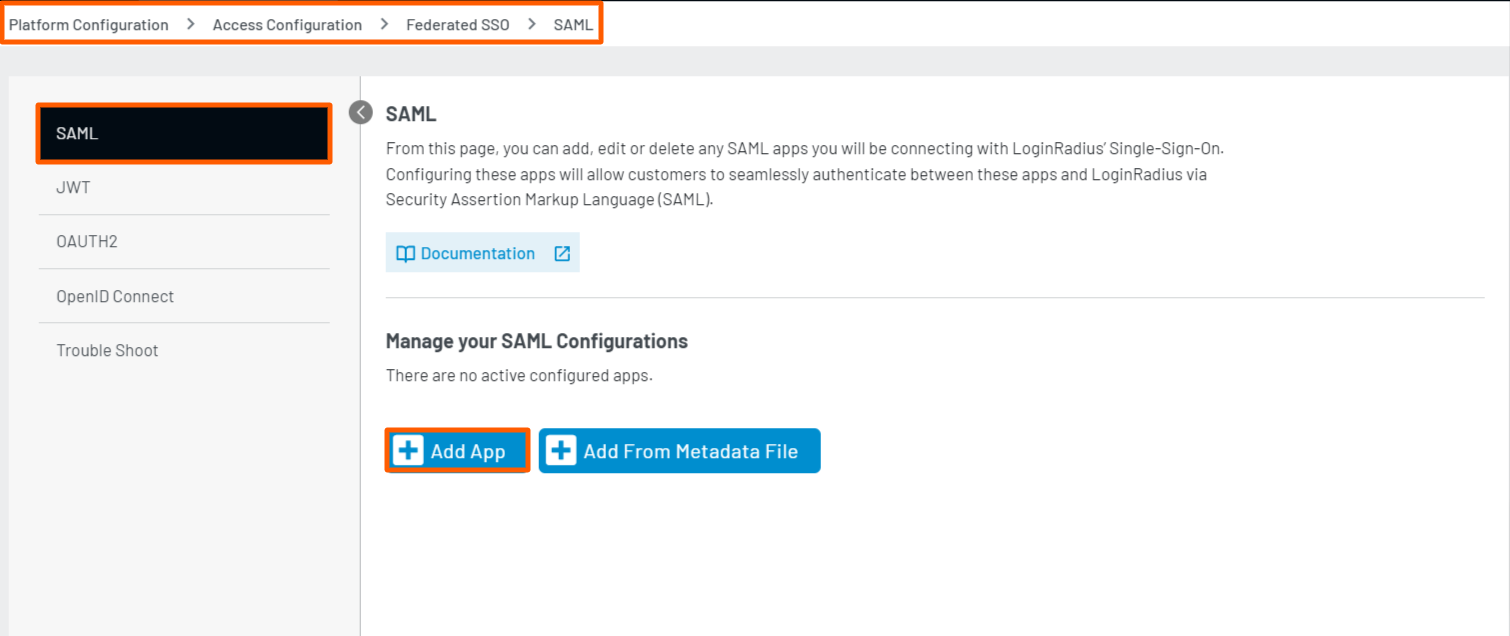
Step 1: Log in to your Admin Console account and navigate to Platform Configuration > Access Configuration > Federated SSO.
The following screen will appear:

Step 2: To configure SAML App, in the Admin Console, click the Add App button highlighted in the screenshot below.
The SAML App configuration fields will appear on the same screen.
Step 3: Select SP Initiated Login from Login Flow options as displayed in the above screenshot.
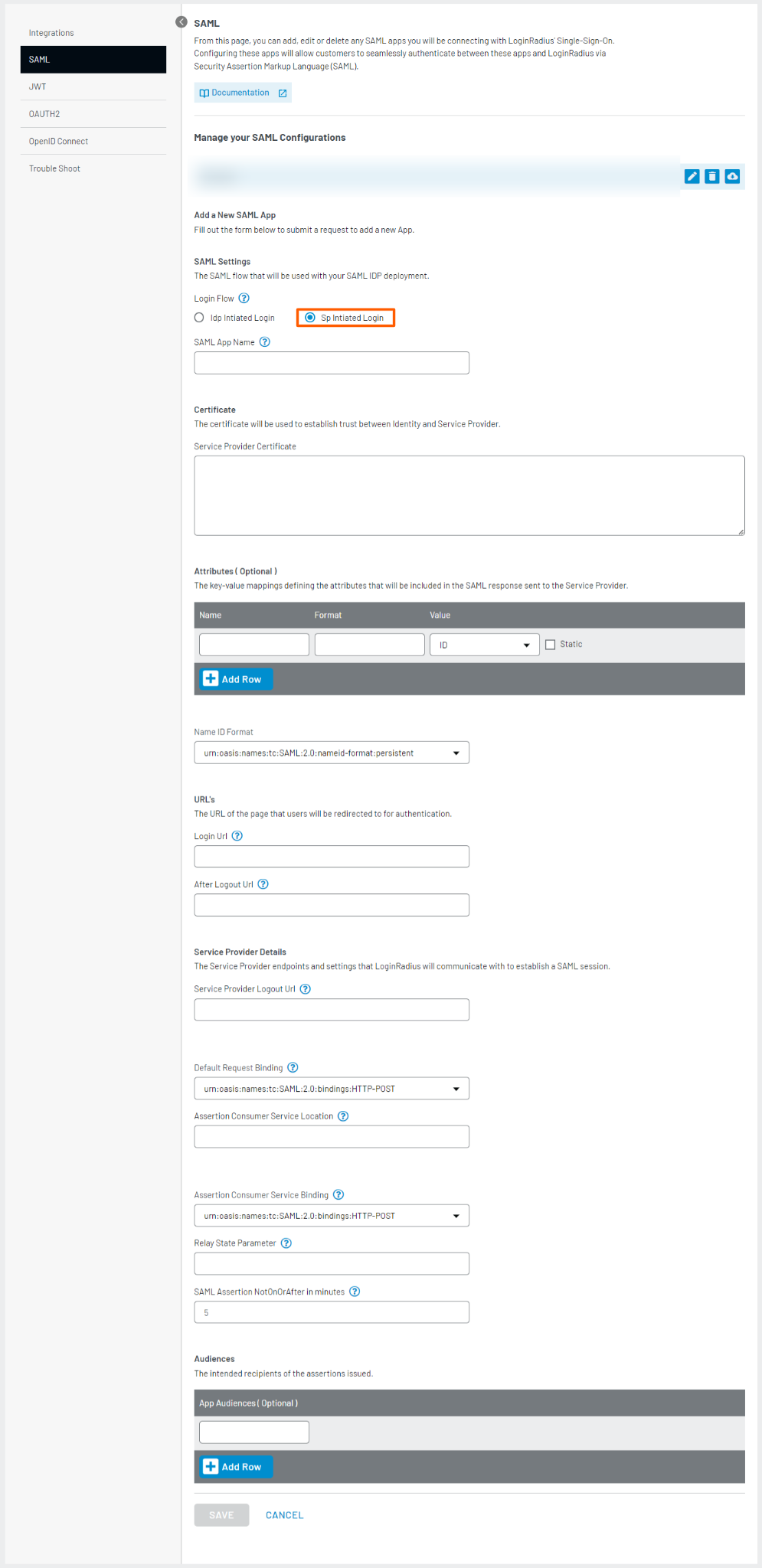
Step 4: In the SAML App Name field, enter an App name. If you have multiple SAML apps, the app name should be unique for each.
Step 5: In the Service Provider Certificate field, enter the service provider's certificate.
Step 6: For Attributes, map the LoginRadius' fields with the Service Provider fields.
- In Name, enter the field name of Service Provider.
- In Format, enter
urn:oasis:names:tc:SAML:2.0:attrname-format:unspecified. - In Value, enter LoginRadius mapping field name.
- Select Static checkbox to not update attribute on runtime in the value field, and it remains the same as entered. If you do not select the Static checkbox, the application will pick the email value from the customer’s profile.
Similarly, by clicking the Add Row button, you can map multiple attributes.
LoginRadius supports the following fields:
| Name | Format | Value | Description |
|---|---|---|---|
| name | urn:oasis:names:tc:SAML:2.0:attrname-format:unspecified | FullName | Selecting full name from the Dropdown Send the full name in the SAML response. |
| urn:oasis:names:tc:SAML:2.0:attrname-format:unspecified | Selecting Email from the Dropdown Send the Email in the SAML response. | ||
| Customfield | urn:oasis:names:tc:SAML:2.0:attrname-format:unspecified | Cusom_field_name(From dropdown) | In a dropdown you can select the custom field name configured as in the Data schema. Note: Custom field will be listed in the drop down when it is only turned on for the Registration form under Data Schema. |
| User Roles | urn:oasis:names:tc:SAML:2.0:attrname-format:unspecified | Other -> Roles[0] | Roles[0] will fetch the first Role from the profile. |

Note:
- If you don't find the Custom Field in the drop-down list, select the Other from the Value dropdown of Attributes section and use dot notation to map the custom field on the basis of name.
For e.g if the custom field name is customfield1 then we can use it like CutomFields.customfield1.
- The Roles field is of type array and will have multiple value "Roles": ["Admin", "Manager"].
You can access the Roles array value using the index for e.g if the role is on “0” index then it can beaccess like Roles[0].
Step 7: For Name Id Format, select name Id format that is supported by the Service Provider. The default is urn:oasis:names:tc:SAML:2.0:nameid-format:persistent
Step 8: In Login URL, enter https://<LoginRadius Site Name>.hub.loginradius.com/auth.aspx..
Step 9: For After Logout URL, enter https://<LoginRadius Site Name>.hub.loginradius.com/auth.aspx?action=logout
Step 10: In the Service Provider Logout URL, enter the service provider logout URL (you will get the SLO URL from a third-party service provider). This Logout URL will be called in the Single Logout (SLO) SAML workflow.
Step 11: To configure the Default Request Binding, select the appropriate binding value from the drop-down menu based on your service provider's configuration. LoginRadius supports both HTTP-Redirect and HTTP-POST binding types. By default, the binding is set to urn:oasis:names:tc:SAML:2.0:bindings:HTTP-POST, but you can adjust it according to your specific needs.
Step 12: In Assertion Consumer Service Location, enter location (you will get this from your service provider).
Step 13: In Assertion Consumer Service Binding, select the binding value as
urn:oasis:names:tc:SAML:2.0:bindings:HTTP-POST from the drop-down.
Note: LoginRadius supports POST binding for assertion consumer service
Step 14: For Relay State Parameter, enter RelayState.
Step 15: Configure the SAML Assertion NotOnOrAfter field in your LoginRadius settings, with options ranging from a minimum of 1 minute to a maximum of 70 minutes, allowing for flexible expiration times.
Note: The default value is set to 5 minutes.
Step 16: For App Audiences, enter EntityId of your Service provider.
Step 17: Select HTTPPost from SSO Method.
Step 18: Click the ADD A SAML APP button to save the app settings.
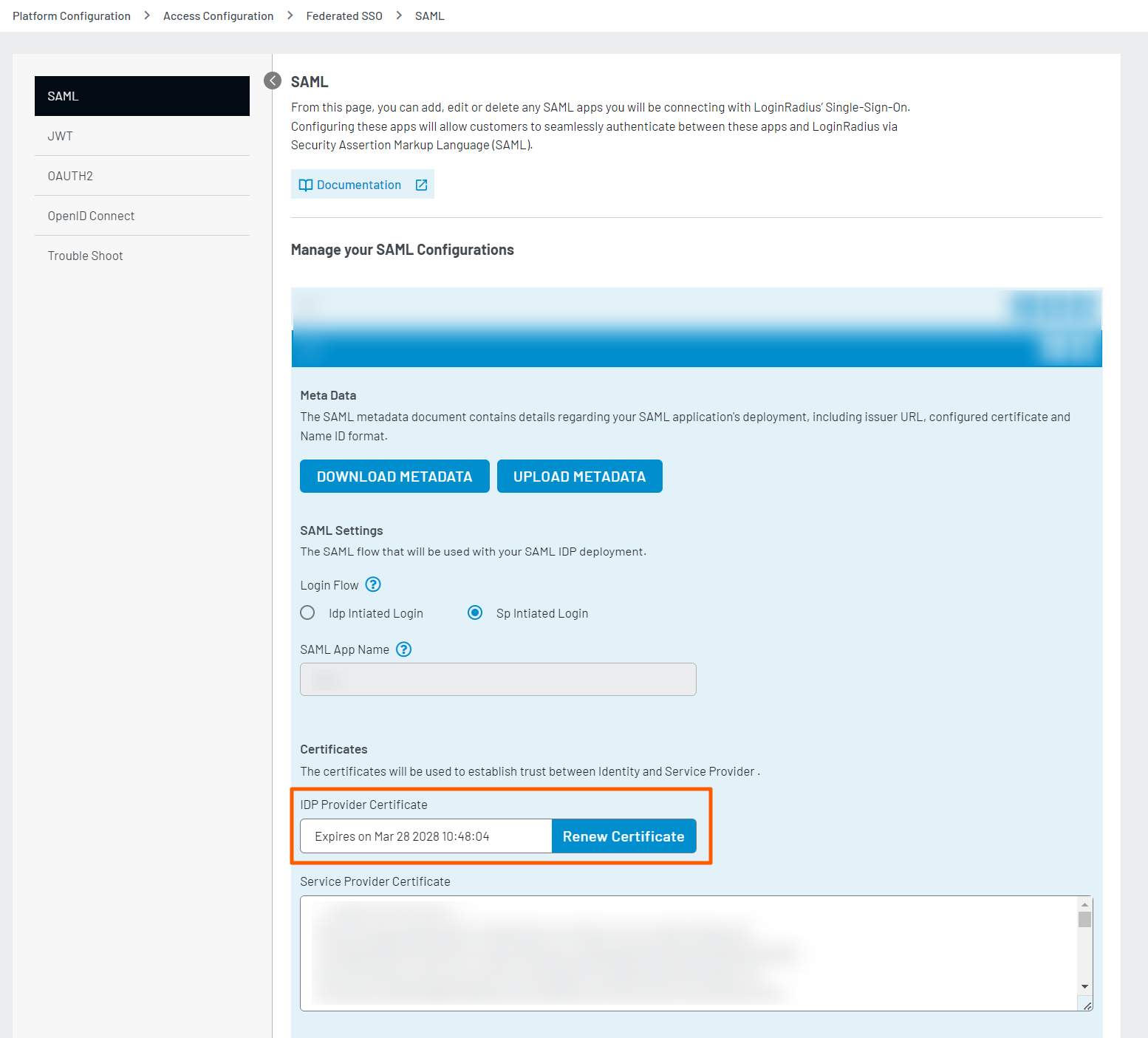
Note: To renew the Identity Provider Certificate, click the designated "Renew Certificate" button. Once the renewal is completed, the updated expiry date and time will be promptly shown.
Once you are done configuring the SAML app in the in Admin Console, you can view the recent success or error logs data for your SSO connection in the Troubleshoot section. To view the latest logs, click the Refresh button.
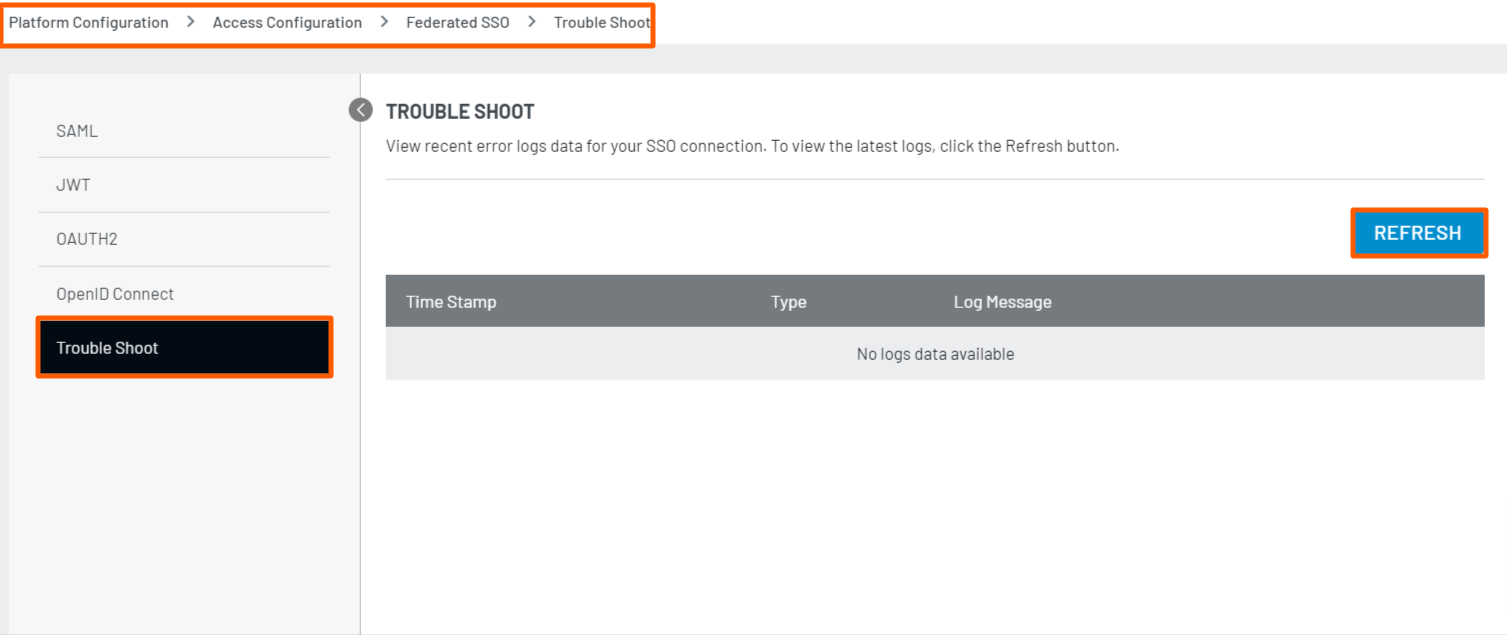
Note: Currently, the Logs only supports the SAML flow.
Configure Service Provider Application
Once you have successfully configured the SAML app in LoginRadius Admin Console, now you need to configure the third-party Service provider.
This document provides a step-by-step guide to configure the SAML SSO on the third-party service provider.
Each third-party authentication system is unique and will require different configuration settings.
NOTE: If you have enabled or added a Custom Domain for your existing application, please be aware that you should replace the URL
https://<LoginRadius Site Name>.hub.loginradius.com/withhttps://<Your Custom Domain>/in fields such as Issuer, EntityID, Login and Logout URLs, or any fields having the same format.
Use the following values to configure your application for SP and IDP initiated login flow:
Step 1: Identity provider Login URL (SSO Endpoint): https://<LoginRadius Site Name>/service/saml/idp/login?appname=<SAMLAppName>
Step 2: Use the LoginRadius certificate in your Service Provider application. To obtain the LoginRadius certificate, which is automatically generated from the backend, you can download the metadata file from the Admin Console after completing the configuration process. Please refer to the screenshot below for further clarification.

After opening the downloaded metadata file, the certificate will be visible as below:

Step 3: In the Issuer or EntityID fields, enter your LoginRadius site URL (we can enter any other Entity ID URL, and the same value should be added for the APP AUDIENCES field in the LoginRadius Admin Console.): https://<LoginRadius Site Name>.hub.loginradius.com/
Step 4: For SSO binding or Service Provider Initiated Request Binding select HTTP-POST
Step 5: Into the SAML Relay State enter this value: redirect (Service Provider Specific)
Step 6: Enter the Logout URL: https://<LoginRadius Site Name>/service/saml/idp/logout?appname=<SAMLAppName>
Note: If SP supports Single Logout (SLO) feature, enter
https://<LoginRadius Site Name>/service/saml/idp/logout?appname=<SAMLAppName>for Logout URL in SP application.
Next Steps
The following is the list of documents you might want to look into: