Standard Login Form Fields
Overview
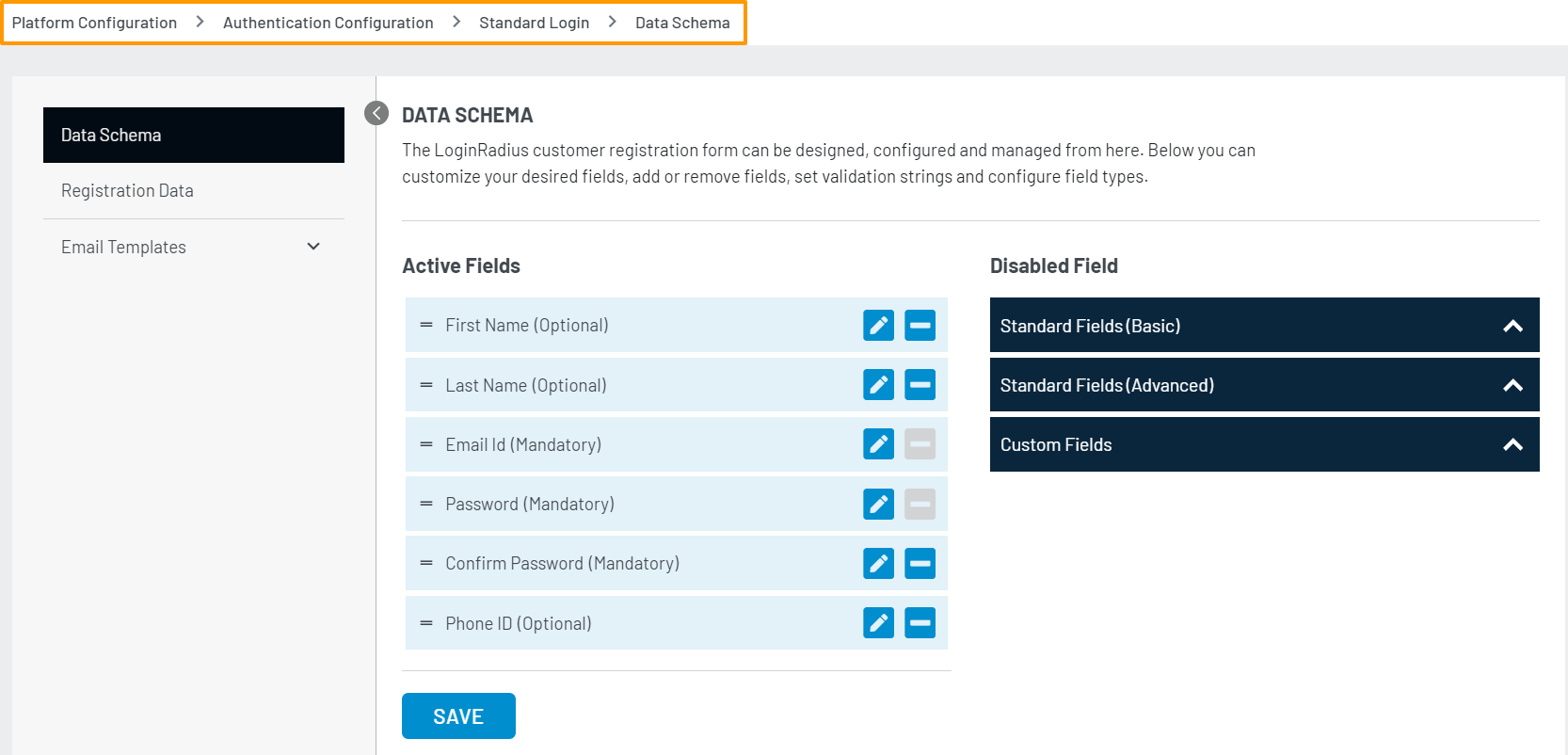
This document highlights the fields provided by LoginRadius for user registration forms. We have categorized the fields in 3 categories i.e, Standard Fields (Basics), Standard Fields (Advanced) and Custom Fields. You can configure and manage the fields for registration forms under the LoginRadius Admin Console > Platform Configuration > Authentication Configuration > Standard Login > Data Schema.
Note: There is no inherent limit for the fields in the profile. However, you can establish a limit by applying a regular expression (regex) to the required field. You can navigate to the Platform Configuration > Standard Login > Data Schema section of the Admin Console to define the validation string according to your requirements.
Standard Fields (Basic)
Standard Fields are the most commonly used fields for registration forms, we have provided around 30 predefined Basic Standard fields they are:
- About
- City
- Country
- Date of Birth
- Email Subscription
- First name
- Gender
- Home Town
- Image URL
- Industry
- Last name
- Local City
- Local Country
- Main Address
- Middle Name
- Nick Name
- Phone ID
- Political
- Prefix
- Profile Country
- Relationship Status
- Religion
- State
- Suffix
- Thumbnail Image Url
- Time zone
- User Name
Standard Fields (Advanced)
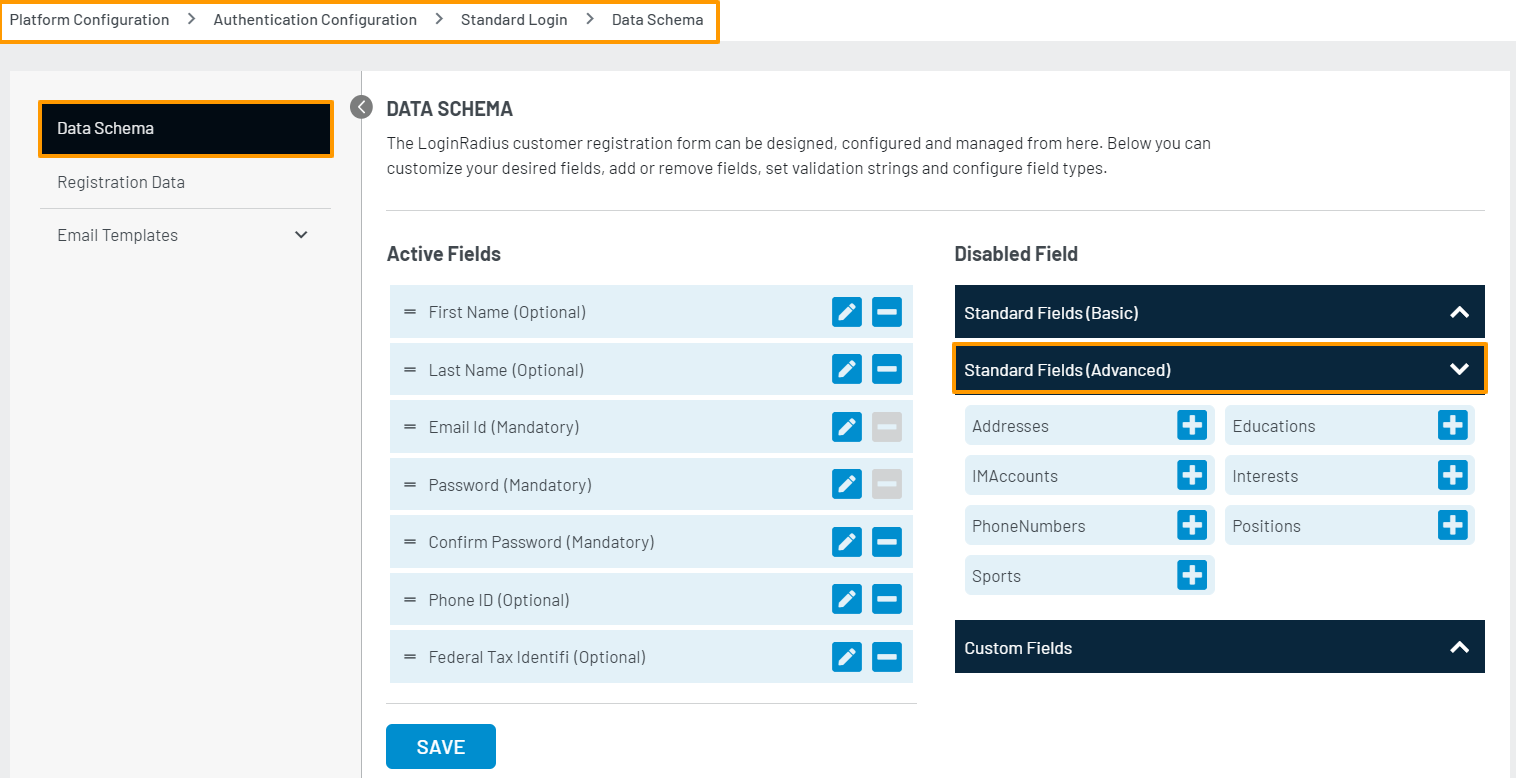
We have provided around 7 advanced predefined fields in Standard Fields, these are the complex fields provided for registration forms and can be enabled by simply clicking on them. Below is the list of Standard Fields (Advanced)
- Address
- Education
- IM Accounts
- Interest
- Phone Numbers
- Positions
- Sports
Custom Fields
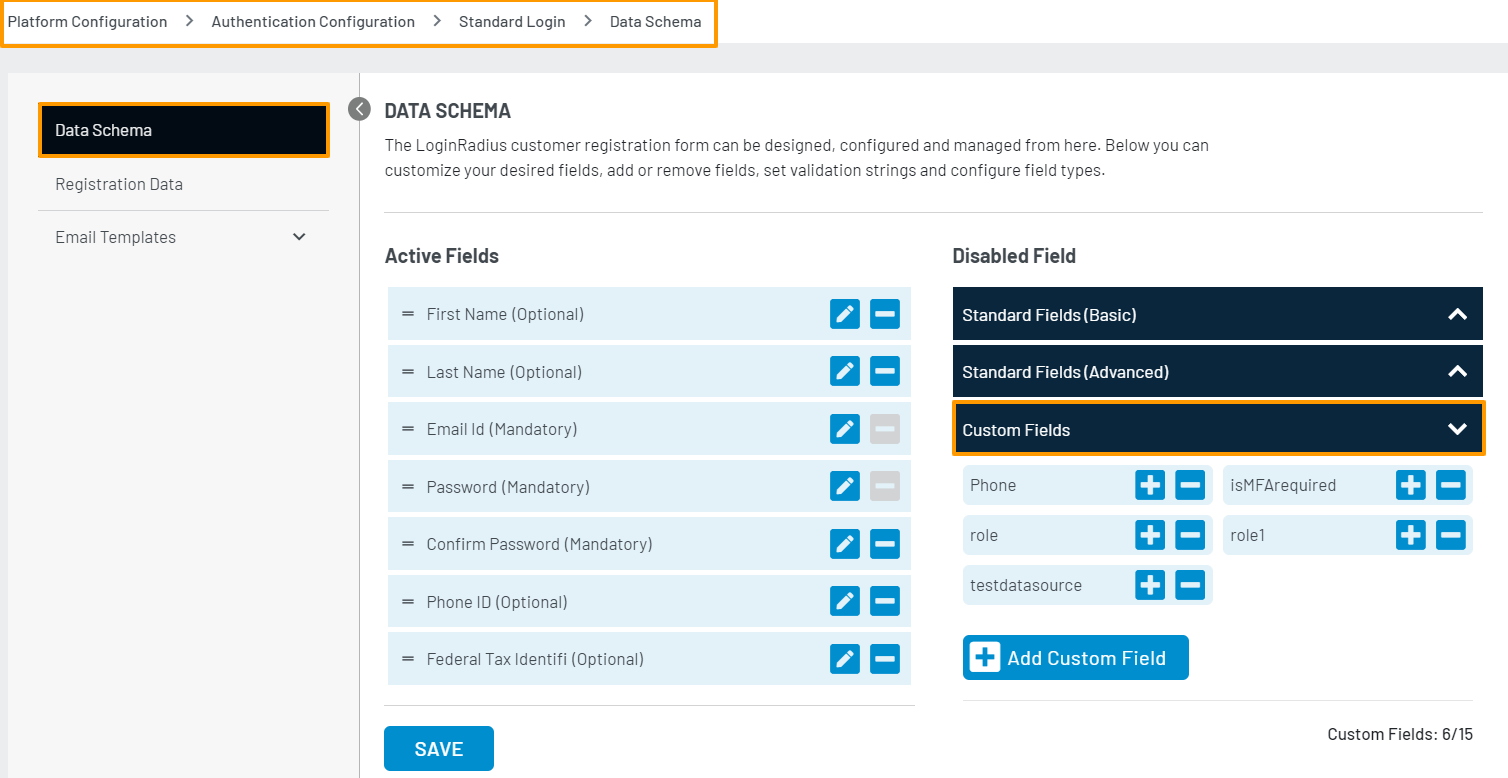
Custom Fields are fields that you can create for your own specific needs and use on registration forms. They allow you to create new fields (up to 15) that are not listed under Standard Field (Basic and Advanced). If a field is not listed in the Standard Field list, you can create a new one, add it and configure it.
Note: you should not create a field under custom field if it is already listed under standard fields list.
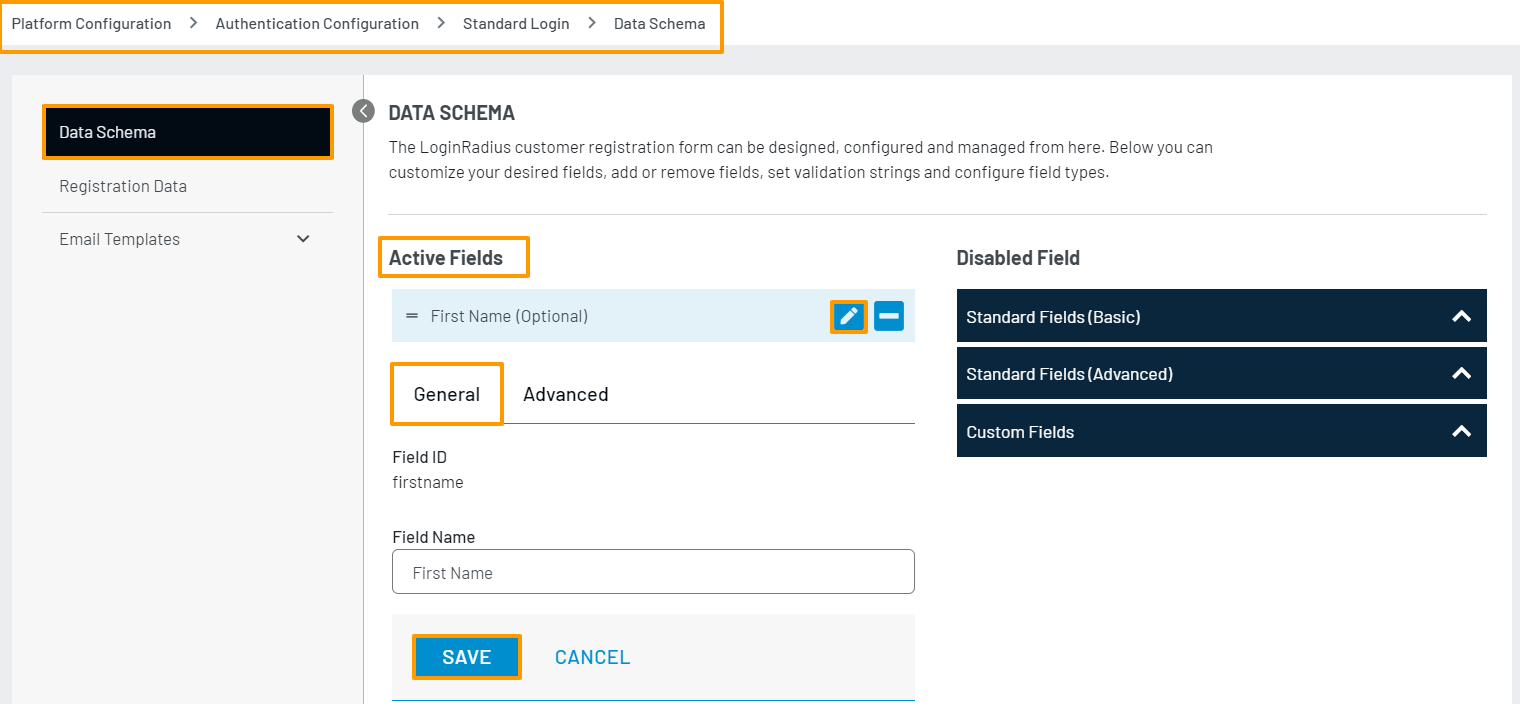
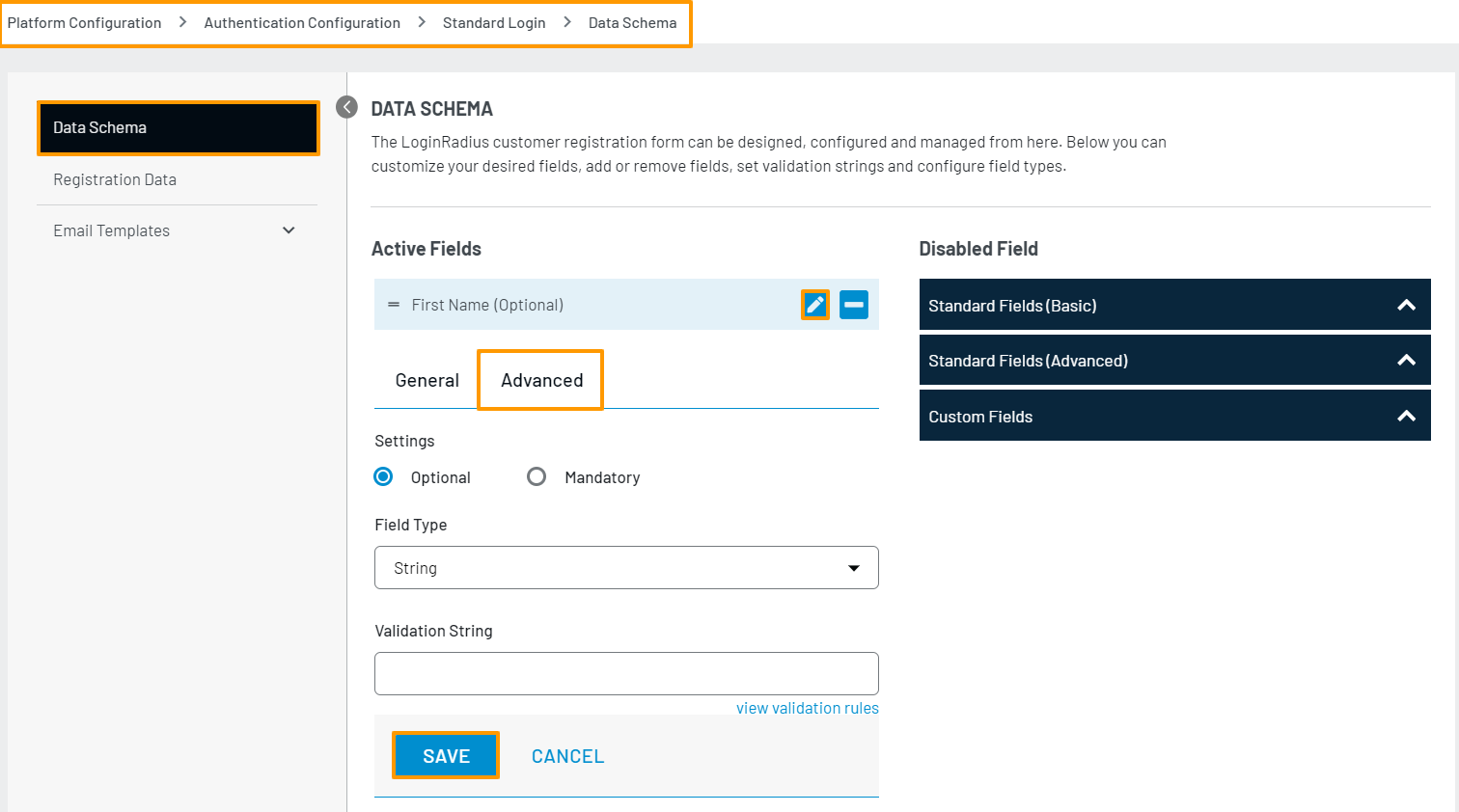
You can configure standard fields and also can edit/delete/manage them, there are 2 available settings General and Advanced. Following are the modifications you can make from the settings.:
-
General
- The label of standard fields
-
Advanced
- Optional / Mandatory
- Field type
- Validation string
Configuring a field/Advanced Settings
- Click on any field from Custom/Standard Fields (Basic and Advanced) under Disabled Fields
- Now, you will find that field under Enabled Fields
- Click on the Edit icon to edit the respective field
- Switch between General and Advanced settings and make required changes, hit on Save to save the settings.
- To arrange the order of the fields simple drag the field and drop where you want to place it.
- Now, hit Save Configuration