Social Login
Social Login offers a fast and convenient way for users to register and log in, allowing them to bypass the traditional registration forms. This streamlined process not only enhances user experience but also significantly boosts customer conversion rates. By enabling users to sign in with their existing social media accounts such as Facebook, Twitter, Google+, and more, Social Login simplifies access and encourages more visitors to become registered users.
Social Login Guide
This guide will walk you through the process of setting up and implementing a social login flow. It covers everything you need to configure and deploy the social login feature using the LoginRadius Identity Platform.
Pre-requisites
- A social provider account that you want to implement on your website.
- Basic knowledge of HTML/JavaScript.
An updated chart of all data points based on providers can be found here.
Part 1 - Configuration
This section covers the required configurations that you need to perform in the LoginRadius Admin Console to implement the Social Login functionality.
Configure Social Provider
Step 1: Login to your Admin Console account and navigate to Platform Configuration > Authentication Configuration > Social Login > Social providers.
The following screen will appear:
 Step 2: Click the desired Social ID Provider and follow the step-by-step guide for configuration.
Note: The steps for configuring each social provider may be different.
For example, the following screen displays the configuration steps of LinkedIn:

Upon completing the configuration steps of the selected Social ID Provider, you will get the credentials.
Step 3: Enter the obtained credentials in the Configure App section highlighted in the following screen:

Note: You can skip Step 4, if you are implementing the Social Login using the Identity Experience Framework (IDX).
Step 4: Whitelist your application domain as explained below:
-
In LoginRadius Admin Console, navigate to Deployment > Apps, and the following screen will appear:
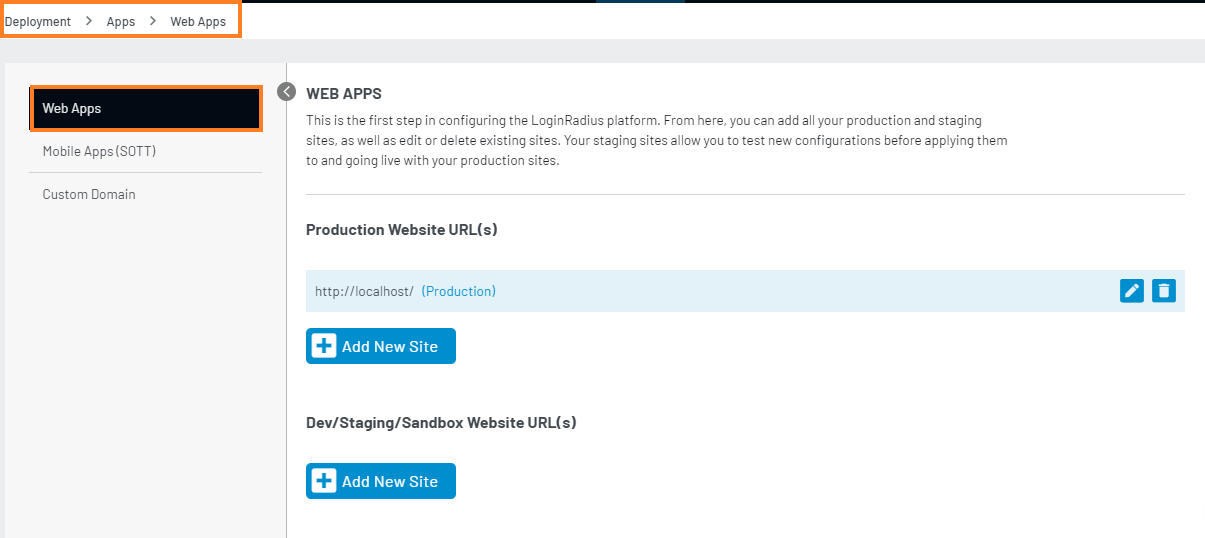
-
Click the Add New Site button, the following section will appear:
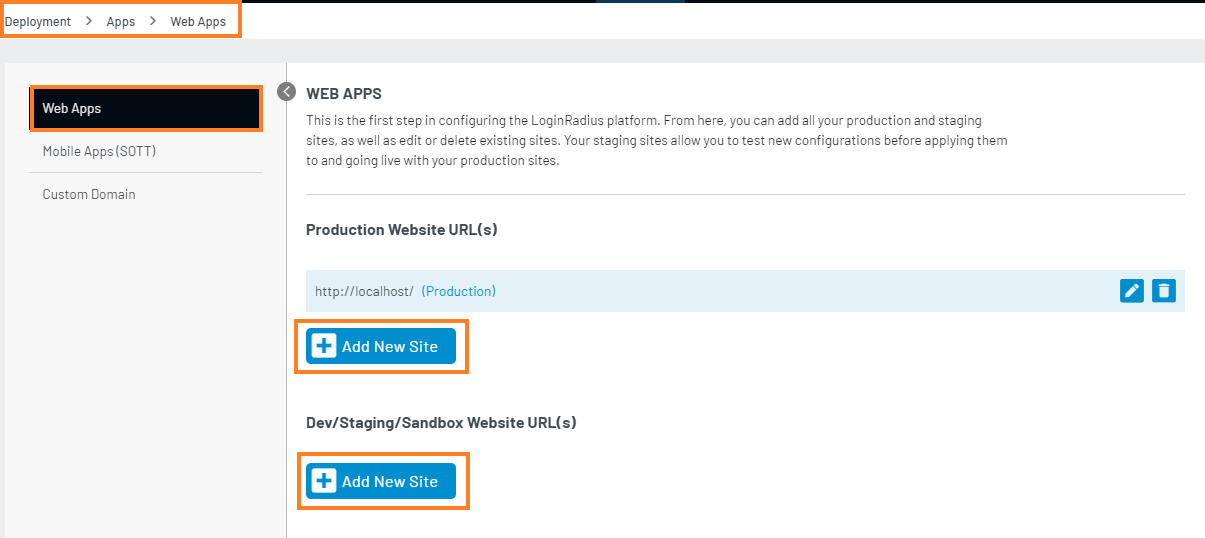
-
Enter your application domain URL in the textbox and click the Add button.
Configure Social Data Points
You are provided with the basic data of customers who registered using a social account. The respective social provider shares the basic data by default. To avail the additional data of such customers, you are required to:
- Enable the desired additional permission for your social app.
- Enable the Extended Data option in the LoginRadius Admin Console.
The following explains how you can set the Extended Data option in the LoginRadius Admin Console:
Step 1. Navigate to Platform Configuration > Authentication Configuration > Social Login > Social Data Settings.
The following screen will appear where the Basic Data option is enabled by default:

Step 2. Click the Extended Data switch to enable extended data points.
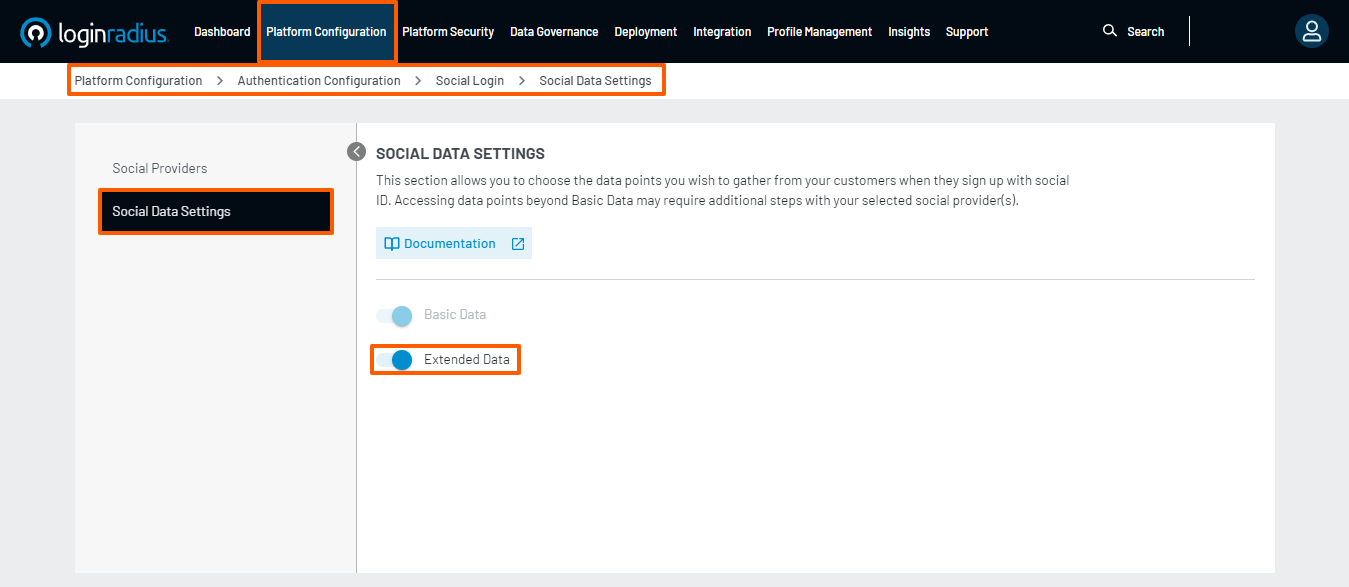
Note: Accessing data points beyond Basic Data may require additional steps with your selected social provider(s).
Part 2 - Deployment
The LoginRadius Identity Platform supports a range of implementation methodologies, providing you with the flexibility to customize customer flows to meet your specific needs. This guide focuses on the basic Identity Experience Framework implementation, but the same goals can be achieved using any of the other implementation methodologies supported by LoginRadius.
Full details on these methodologies can be found here.
Step 1: Locate the Auth Page URL as explained below:
Navigate to Deployment > Identity Experience Framework (Hosted), and the following screen will appear:

The Auth Page URL displays your unique IDX domain in the following format:
<https://<sitename>.hub.loginradius.com/auth.aspx>
In the above URL, sitename is the name of your LoginRadius Site.
You can directly navigate to this domain to review your configured interfaces from Part 1.
Step 2: Embed Authentication Pages in your Website as explained below:
Add a link on your webpage to redirect customers to the Identity Experience Framework(Hosted) Page.
<a href="https://<LoginRadius Site Name>.hub.loginradius.com/auth.aspx?action=<Desired Action>&return_url=<Return URL>">Register</a>
In the above URL, replace the following:
-
LoginRadius Site Name: Your unique LoginRadius sitename.
-
Desired Action: The following are the action lists you can use. Login
Register
Logout
Examples:
Login Page
<a href="https://<LoginRadius Site Name>.hub.loginradius.com/auth.aspx?action=login&return_url=<Return URL>">Login</a>
Registration Page
<a href="https://<LoginRadius Site Name>.hub.loginradius.com/auth.aspx?action=register&return_url=<Return URL>">Register</a>
3. Return URL: The URL you would like to redirect customers after completing the selected action.
Try this link out on your page. You should be redirected to the LoginRadius Hosted Page, where you can register and log in.
Note: Use the following URL link to display the profile page of logged-in customers.
<a href="https://<LoginRadius site name>.hub.loginradius.com/profile.aspx">View Profile</a>
Note: We have additional language-specific examples here if you want to capture this token in other programming languages.
Step 3: Store the captured Access Token as explained below:
Once a customer has completed the login action, the IDX page will redirect the customer back to the specified return URL and include an access token as a query parameter in the URL.
<Redirect URL>?token=<Access Token>
To get the access token, please add this JavaScript snippet to your web page
function getParameterByName(name) {
                name = name.replace(/[\[]/, '\\[').replace(/[\]]/, '\\]');
                var regex = new RegExp('[\\?&]' + name + '=([^&#]*)');
                var results = regex.exec(location.search);
                return results === null ? '' : decodeURIComponent(results[1].replace(/\+/g, ' '));
            }
var access_token = getParameterByName(“token”);
If you have already added the getParameterByName function, call this function to get the access token in the access_token variable.
You can store the obtained access token in your cookie, local storage and more as per the use case. The following are the example codes for storing the access token in a cookie and local storage:
Storing in cookie:
function setCookie(cname, cvalue, exdays) {
  var d = new Date();
  d.setTime(d.getTime() + (exdays * 24 * 60 * 60 * 1000));
  var expires = "expires="+d.toUTCString();
  document.cookie = cname + "=" + cvalue + ";" + expires + ";path=/";
}
Here cname is cookie name, cvalue is access_token and exdays is the expiry date of cookie where you need to pass the number of days.
setCookie(“lr-session-token”, access_token, “No days”)
Storing in local storage:
localStorage.setItem("lr-session-token", access_token);// First parameter will be the local storage name and 2nd parameter will be access_token
Step 4: You can use the Access Token as explained below:
Call the LoginRadius API to retrieve the customer profile using the Access Token. Alternatively, you can leverage any of our SDKs to accomplish this.
The following is the script example to retrieve the customer profile:
<script>
var xhr = new XMLHttpRequest();
url = "https://api.loginradius.com/identity/v2/auth/account?apiKey=xxxxxx&access_token="+access_token
xhr.open("GET", url);
xhr.setRequestHeader('X-Requested-With', 'XMLHttpRequest');
xhr.setRequestHeader('Content-Type', 'application/json');
xhr.send();
 xhr.onreadystatechange = function() {
    if (xhr.readyState === 4) {
      console.log(xhr.response);
    }
  }
</script>
Note: Once a consumer logs in through a configured social provider, account linking is handled at LoginRadius end, for more details around Account Linking you can refer to this document.
Additional Note: We also provide a feature under which you can create multiple instances of the same social provider on your Login/Registration page. Check out the relevant document in the next steps.
Part 3 - Next Steps
The following is the list of features you might need to add-on to the above implementation: